This article gives an overview of how to create Biztalk Server 2013 VM on Windows Azure.
This article describes how to create Biztalk Server VM on
Windows Azure.
When complete, you have a BizTalk Server available and ready
to be configured using an existing SQL Server virtual machine in Windows Azure.
Internet Information Services (IIS) and MS Distributed Transaction Coordinator
(MSDTC) are also installed and ready to use.
1: Go to Azure portal.
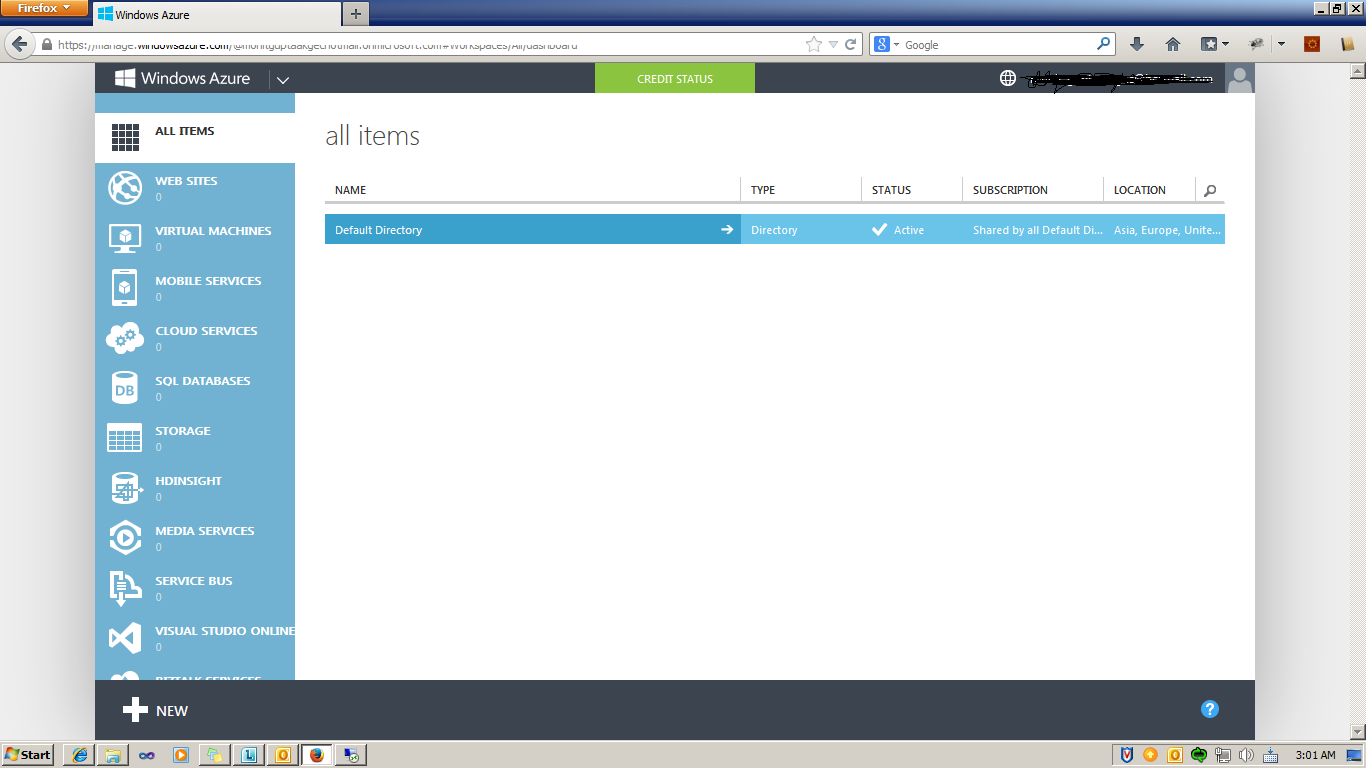
Click on Virtual Machines Tab.

Click on CREATE A VIRTUAL
MACHINE

In the taskbar at the bottom, click New, click Virtual Machine, and then click
From Gallery.

Select Biztalk Server 2013 Enterprise (Select Option as per
required).
BizTalk Server 2013 Evaluation
|
A virtual machine that includes
the following:
|
||
|
A virtual machine that includes
the following:
SQL Server and Visual Studio are not
installed on this virtual machine.
|
||
BizTalk Server 2013 Enterprise
|
A virtual machine that includes
the following:
SQL Server and Visual Studio are not installed on this
virtual machine.
|

Enter the name of the virtual machine
Enter a user name. This user name is the local Administrator
on the virtual machine
Enter the Administrator password.
Re-enter the Administrator password.
Select the virtual machine size that fits your needs.


Wait for some time, to successfully create VM.
Click on CONNECT.it will allow you to download RDP file.
Download RDP file and connect it using rdp file.
Biztalk Server 2013 Machine is ready to configure
Biztalk Server 2013 Machine is ready to configure
